
The app
Deuce Ladder on your phone
Deuce is not in the App Store or Google Play. You install it straight from the website in three to five taps. It then opens from its own icon, full screen, like any other app, and it can tell you the moment you are challenged.
Pick the browser you use. Every step has a screenshot, with the thing to tap circled and numbered. Once Deuce is on your phone, switch on notifications: that part is the same everywhere.
iPhone
Safari on iPhone
Safari is the browser every iPhone comes with. Notifications need iOS 16.4 or later.
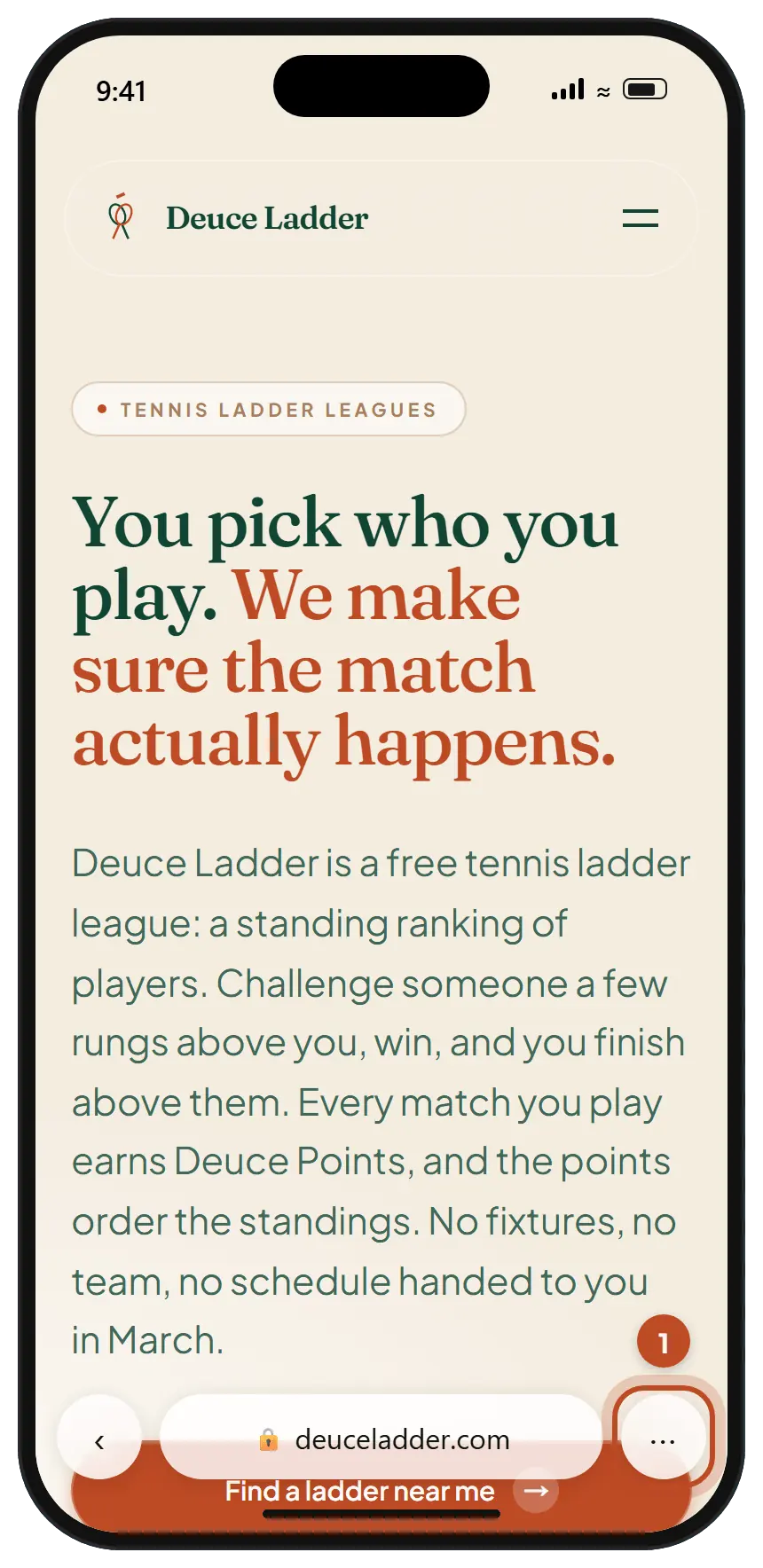
Step 1. Open deuceladder.com in Safari and tap the three dots.
They sit at the bottom right, beside the address. On iOS 18 and earlier there are no dots: tap the Share button in the toolbar (a square with an arrow pointing up) and go straight to step 3.
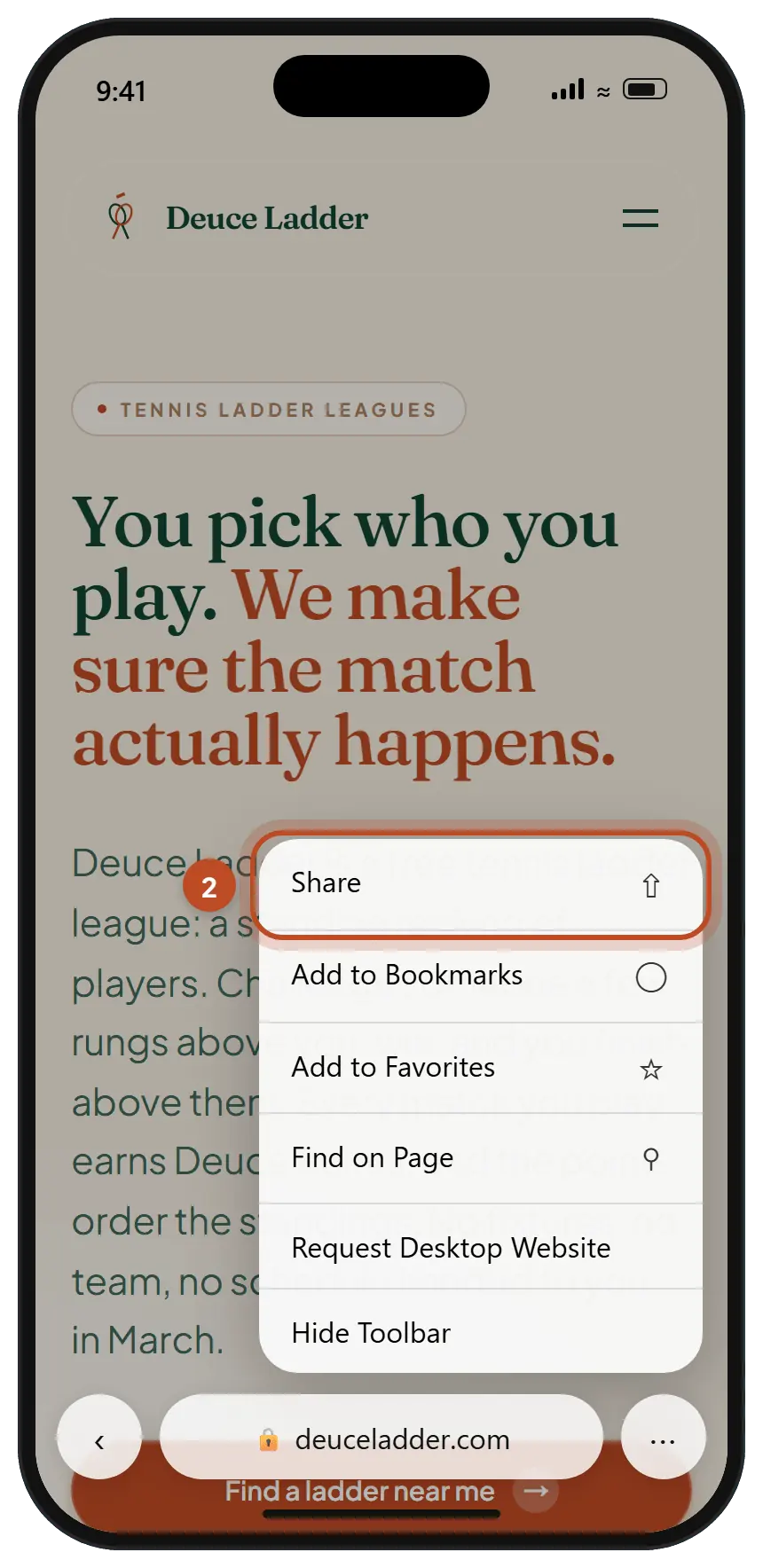
Step 2. Tap Share.
It is the first item in the menu.
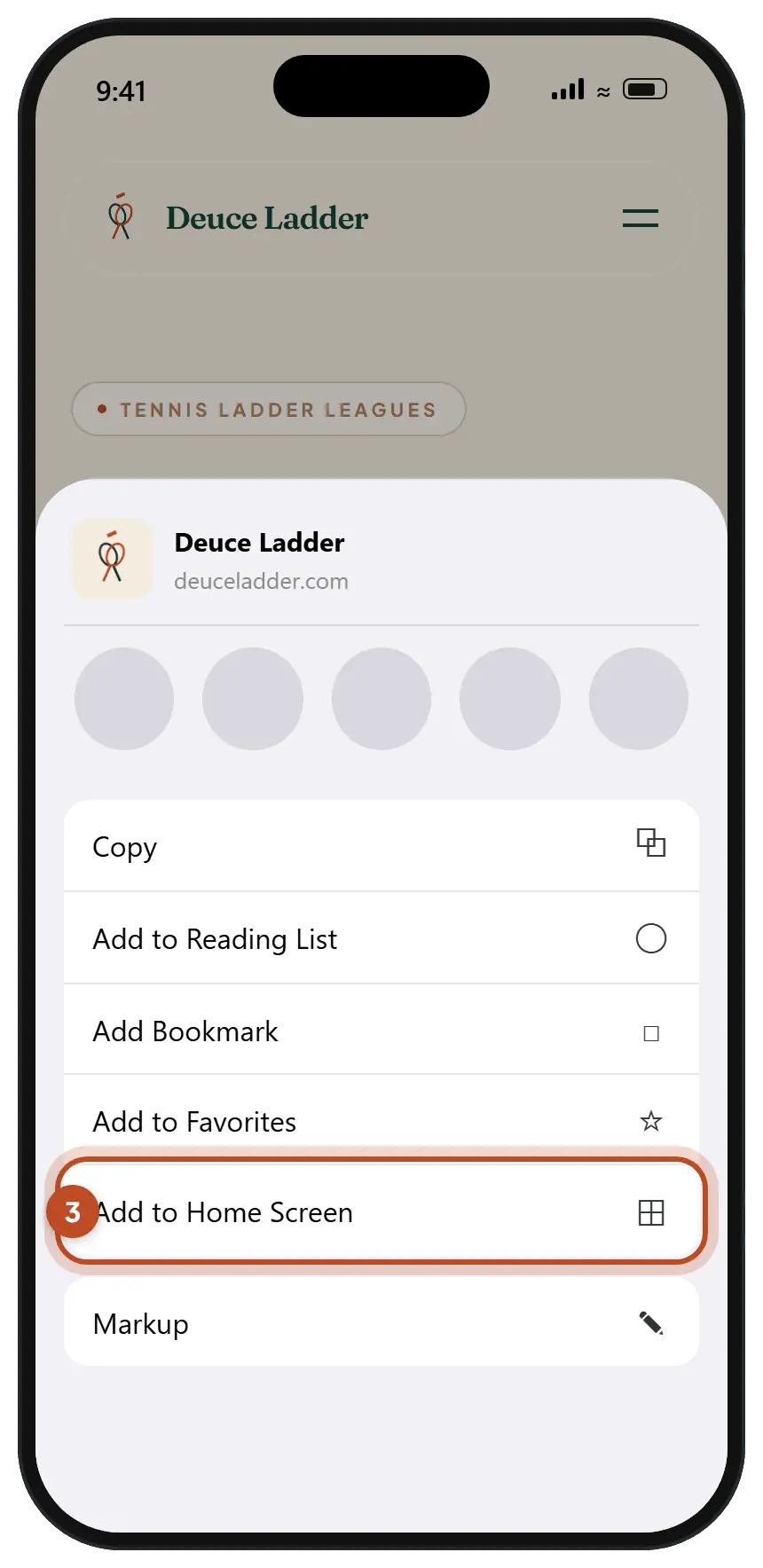
Step 3. Tap Add to Home Screen.
Scroll down the list if you do not see it. Still missing? Tap Edit Actions at the very bottom and add it.
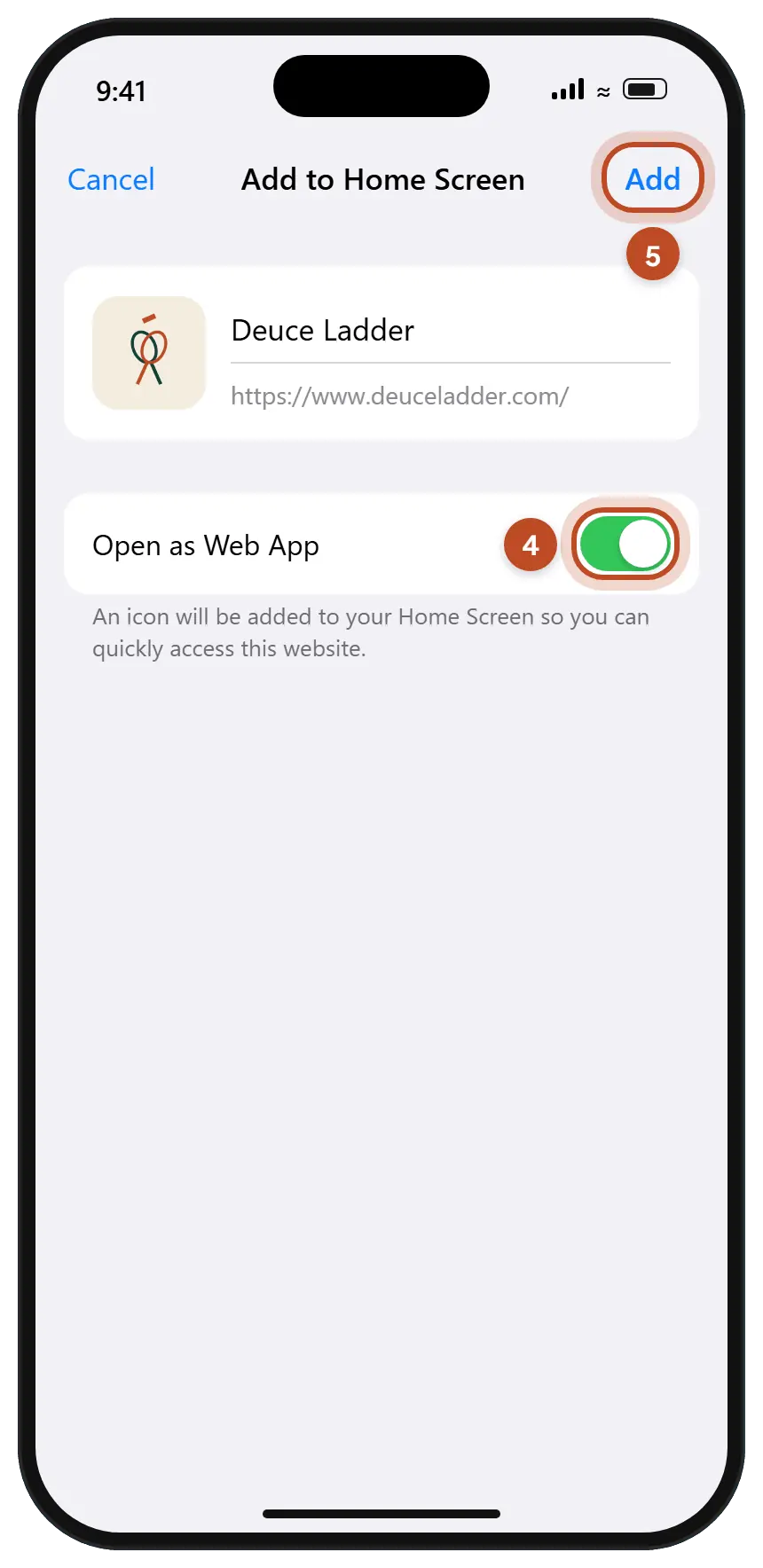
Step 4. Leave Open as Web App switched on.
That switch is what makes Deuce open full screen, with no Safari bar, and it is what allows notifications.
Step 5. Tap Add.
Safari closes the sheet and the icon appears on your Home Screen.
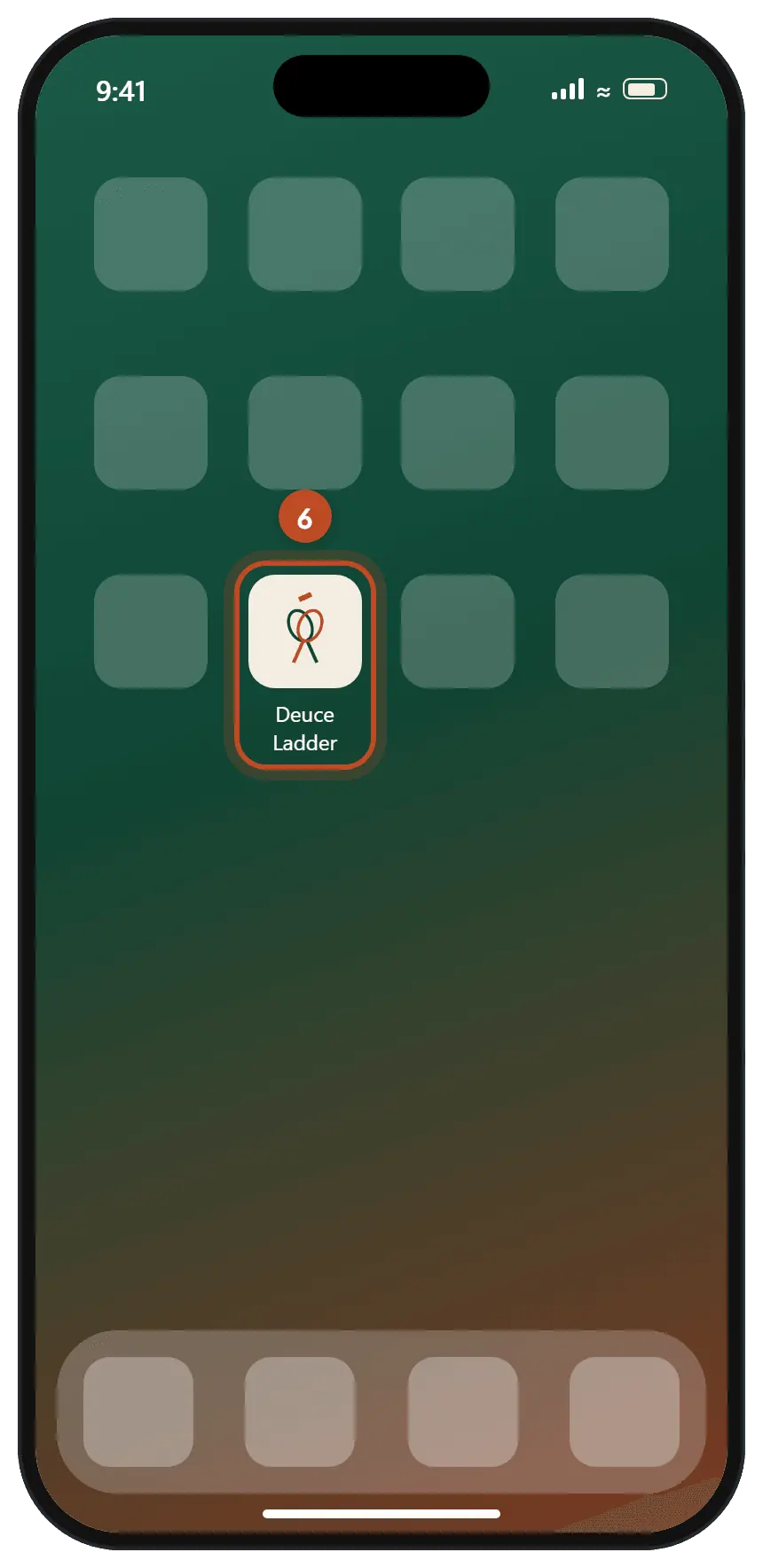
Step 6. Open Deuce from the new icon and sign in.
The app keeps its own sign-in, separate from Safari, so it asks once. From now on, use the icon rather than Safari.
Next: switch on notifications.
iPhone
Chrome on iPhone
Chrome on iPhone can add Deuce to your Home Screen too, on iOS 16.4 or later. The app it adds is the same one Safari adds, and notifications work the same way.
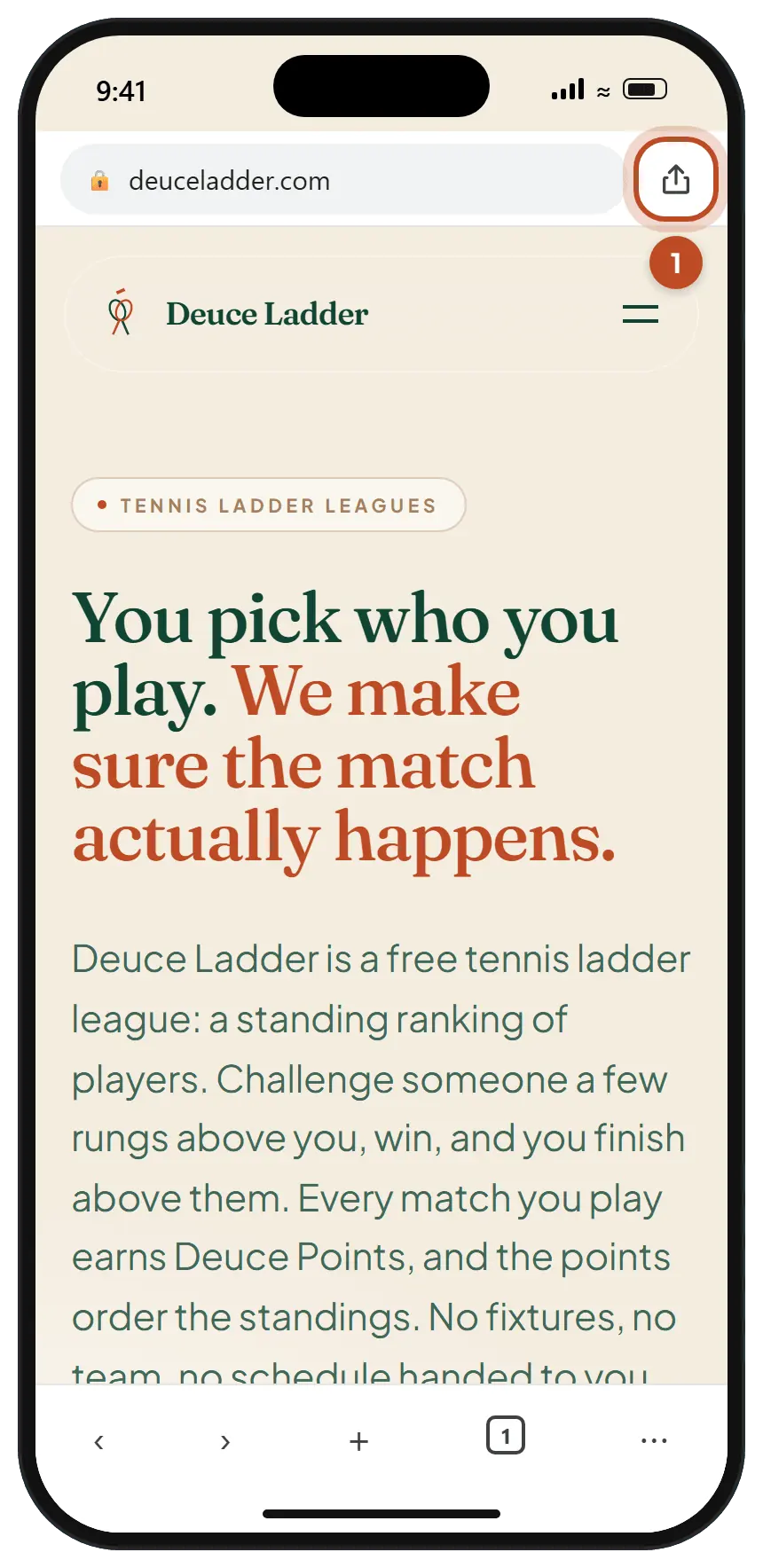
Step 1. Open deuceladder.com in Chrome and tap the Share button.
It sits at the right end of the address bar: a square with an arrow pointing up. If you moved the address bar to the bottom of the screen, the button moved with it. No Share button at all? Tap the three dots at the bottom right, then Share.
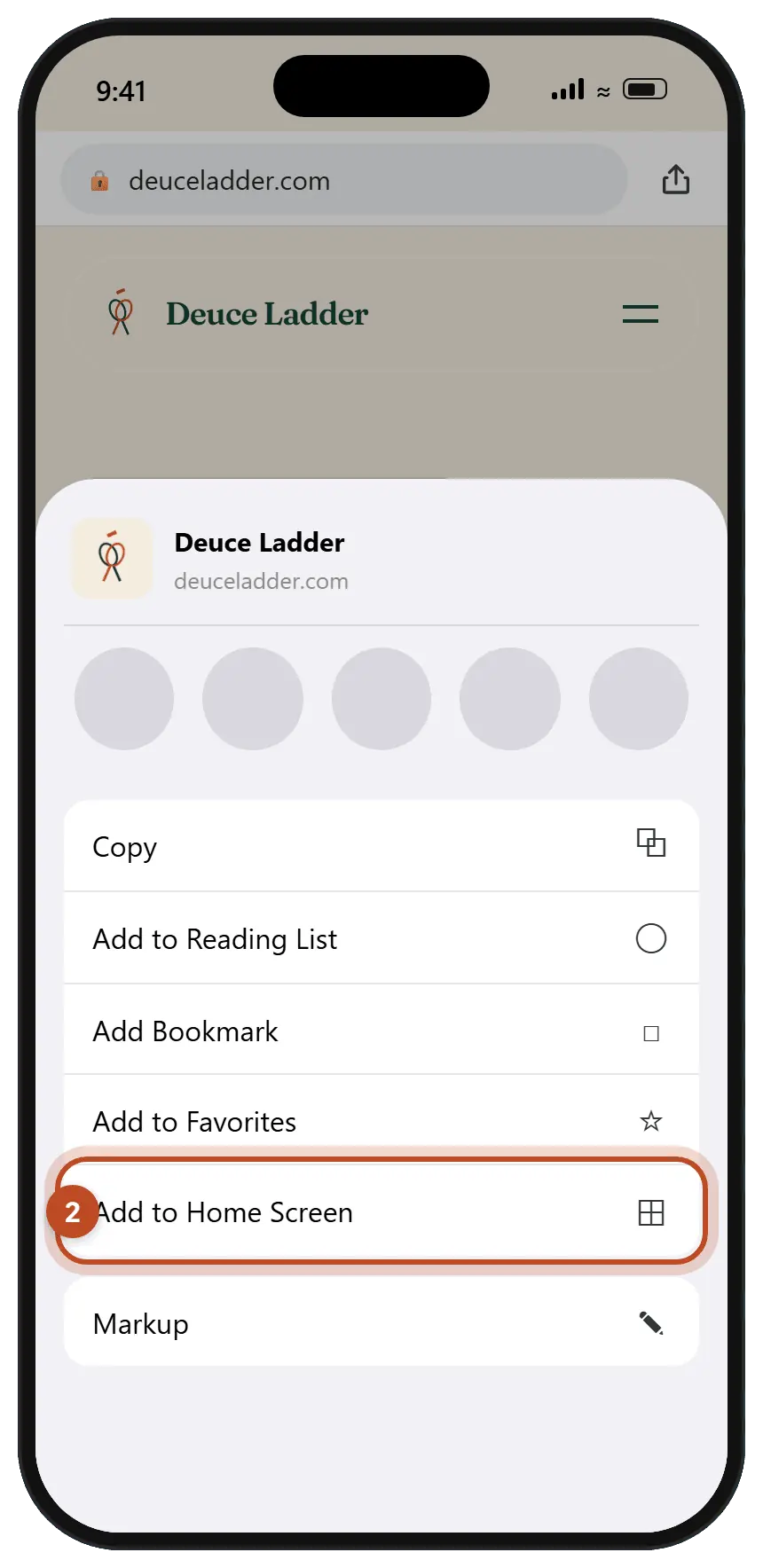
Step 2. Tap Add to Home Screen.
Scroll down the list if you do not see it. Still missing? Tap Edit Actions at the very bottom and add it.
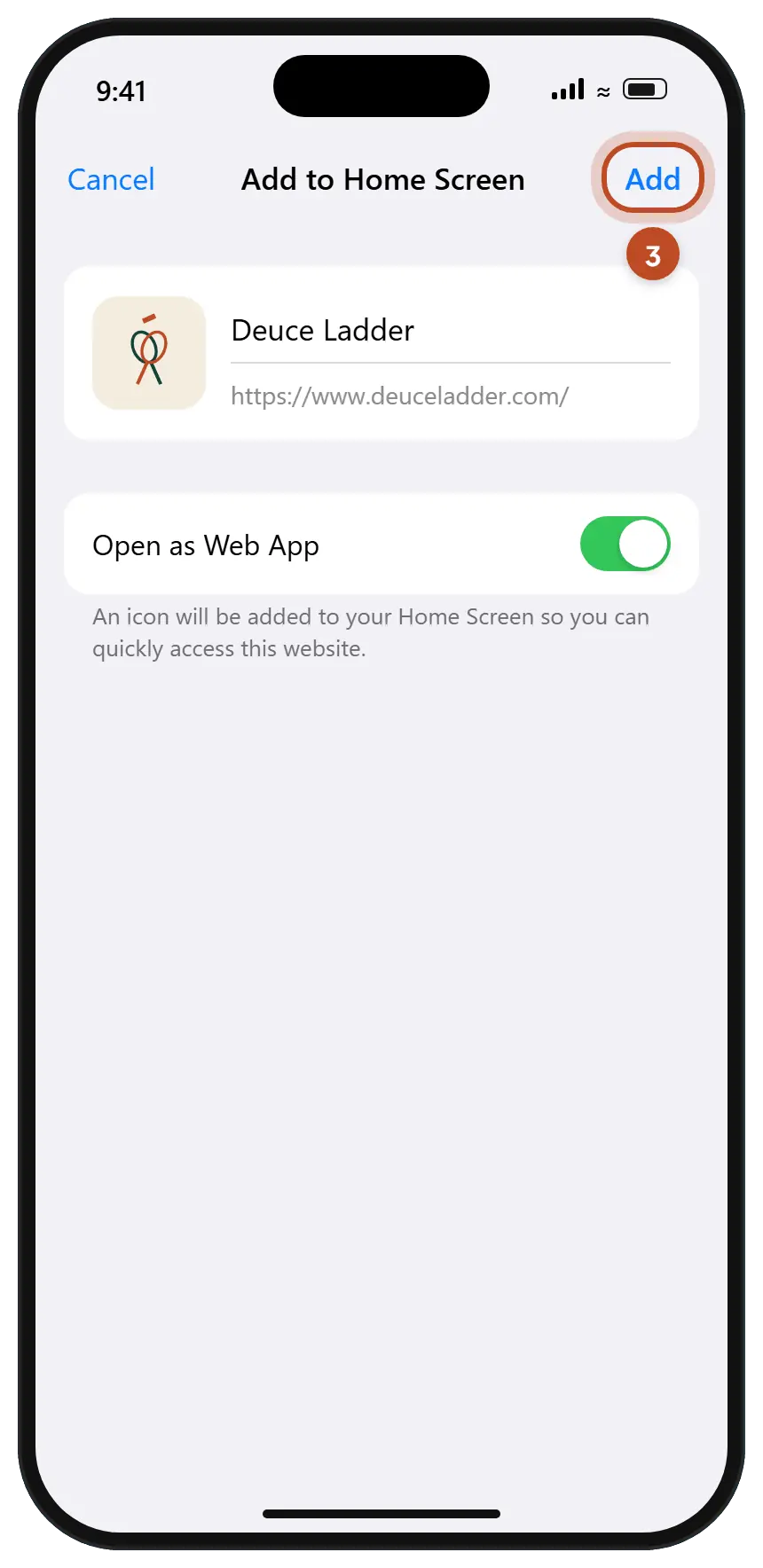
Step 3. Tap Add.
If the sheet shows an Open as Web App switch, leave it on.
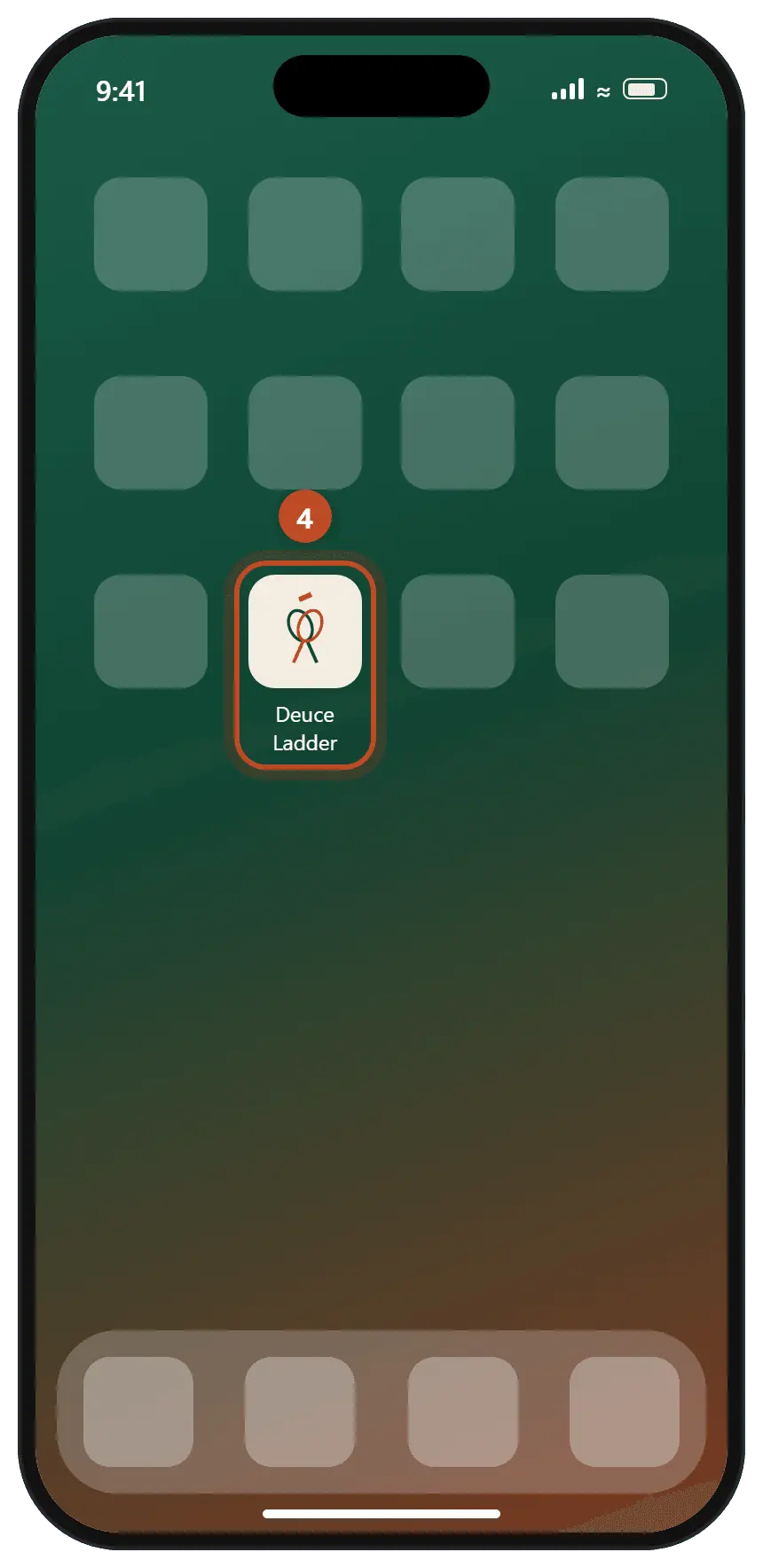
Step 4. Open Deuce from the new icon and sign in.
The app keeps its own sign-in, separate from Chrome, so it asks once. From now on, use the icon rather than Chrome.
Next: switch on notifications.
Android
Chrome on Android
Chrome is the browser most Android phones come with. Samsung Internet and Firefox work as well; their menus are covered below the steps.
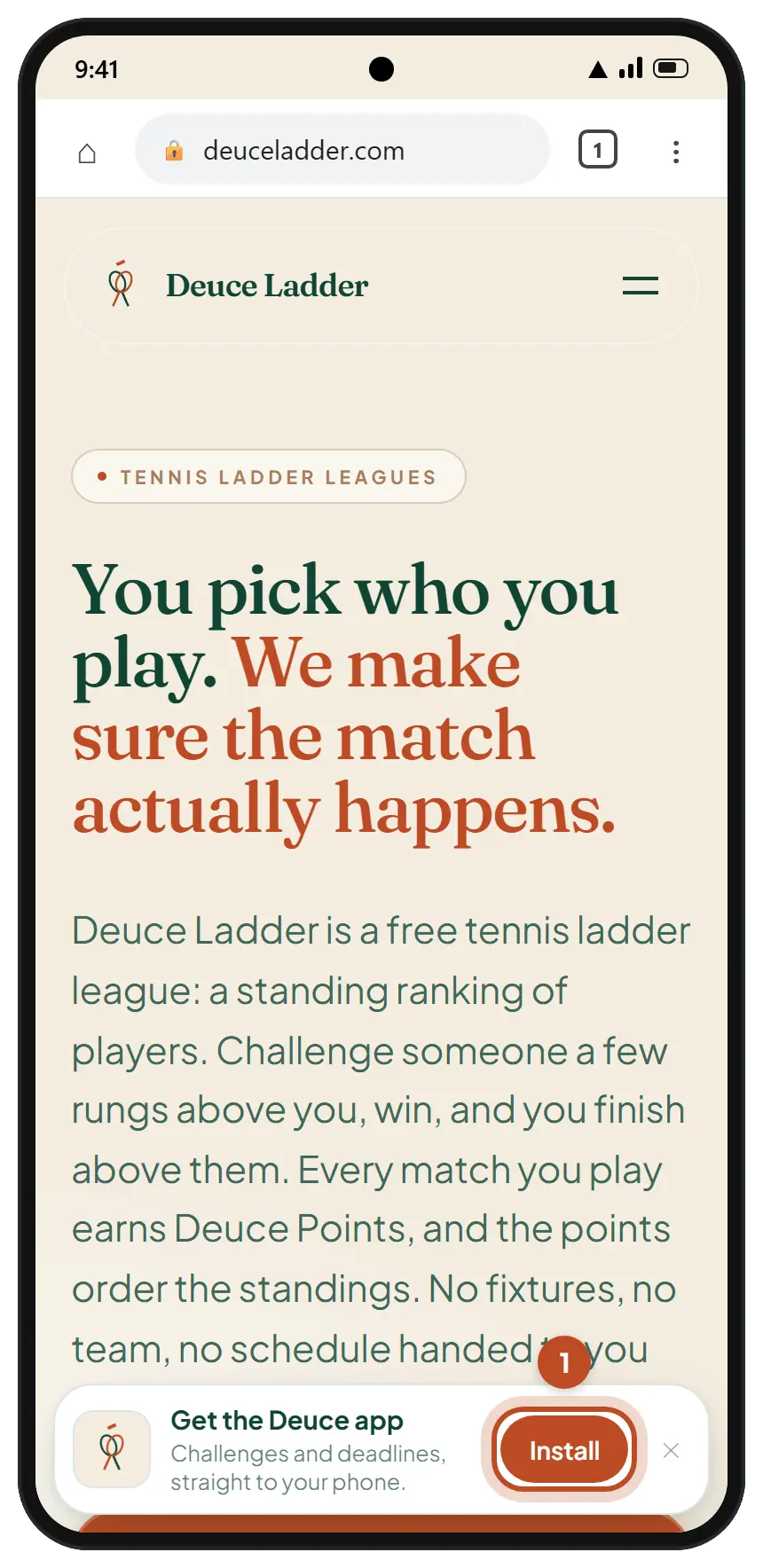
Step 1. Open deuceladder.com in Chrome and tap Install.
A Get the Deuce app bar sits at the bottom of every page. If Chrome then shows its Install app sheet, skip to step 4.
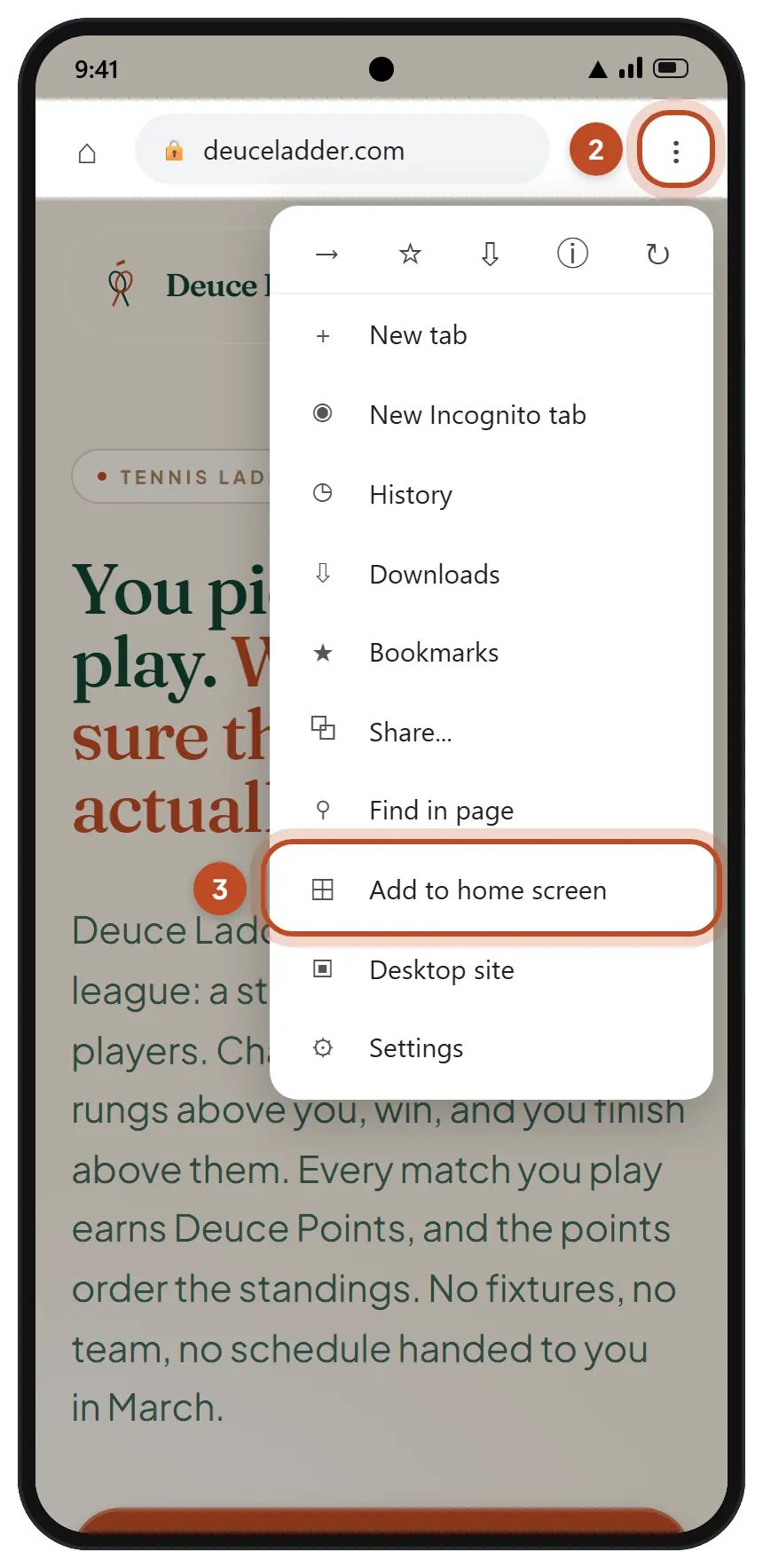
Step 2. No bar, or no sheet? Tap the three dots.
They sit at the top right, beside the address.
Step 3. Tap Add to home screen.
Some versions of Chrome call it Install app. If Chrome asks whether to install or create a shortcut, choose Install.
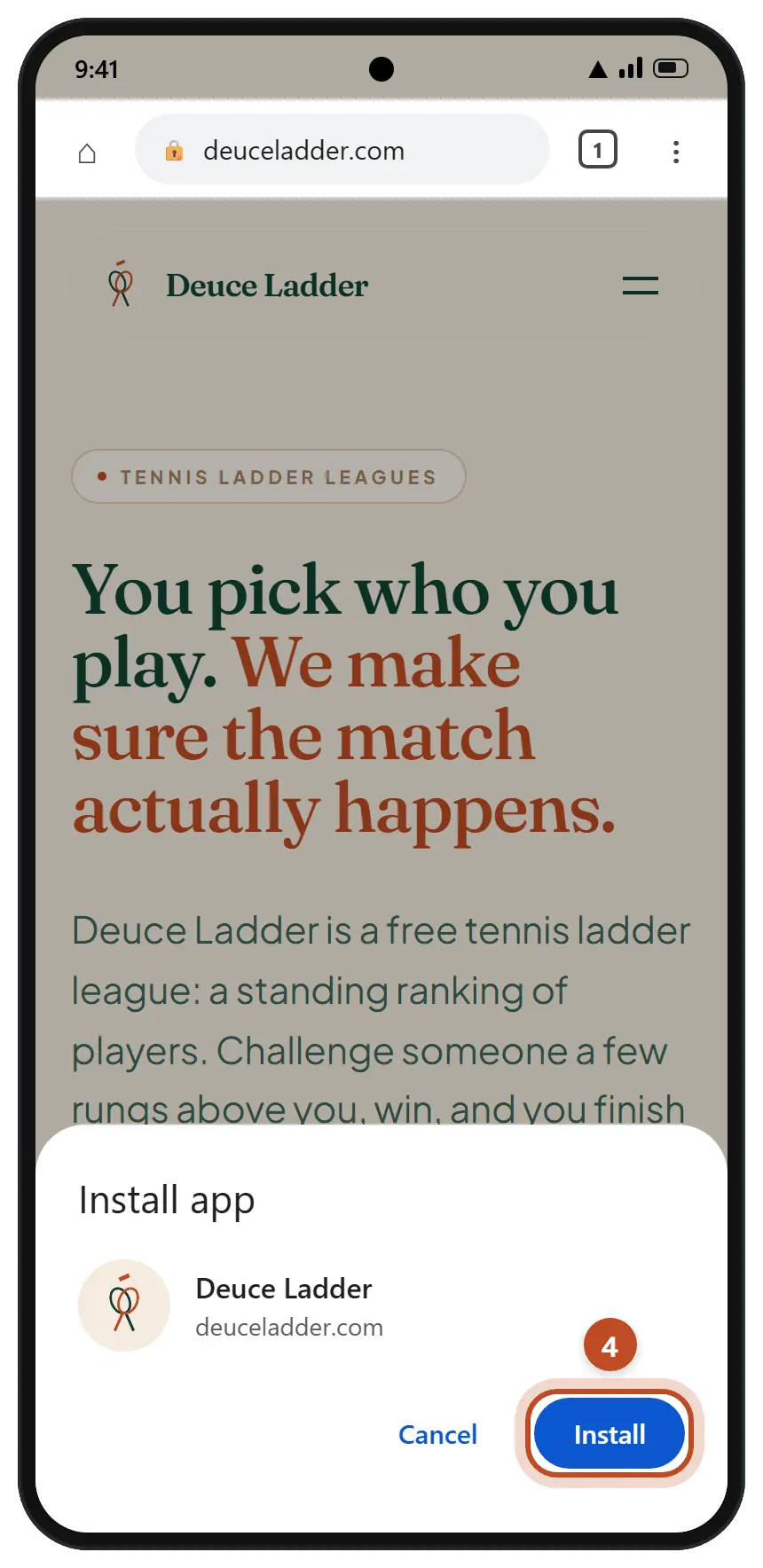
Step 4. Tap Install.
Chrome adds Deuce to your home screen and your app drawer.
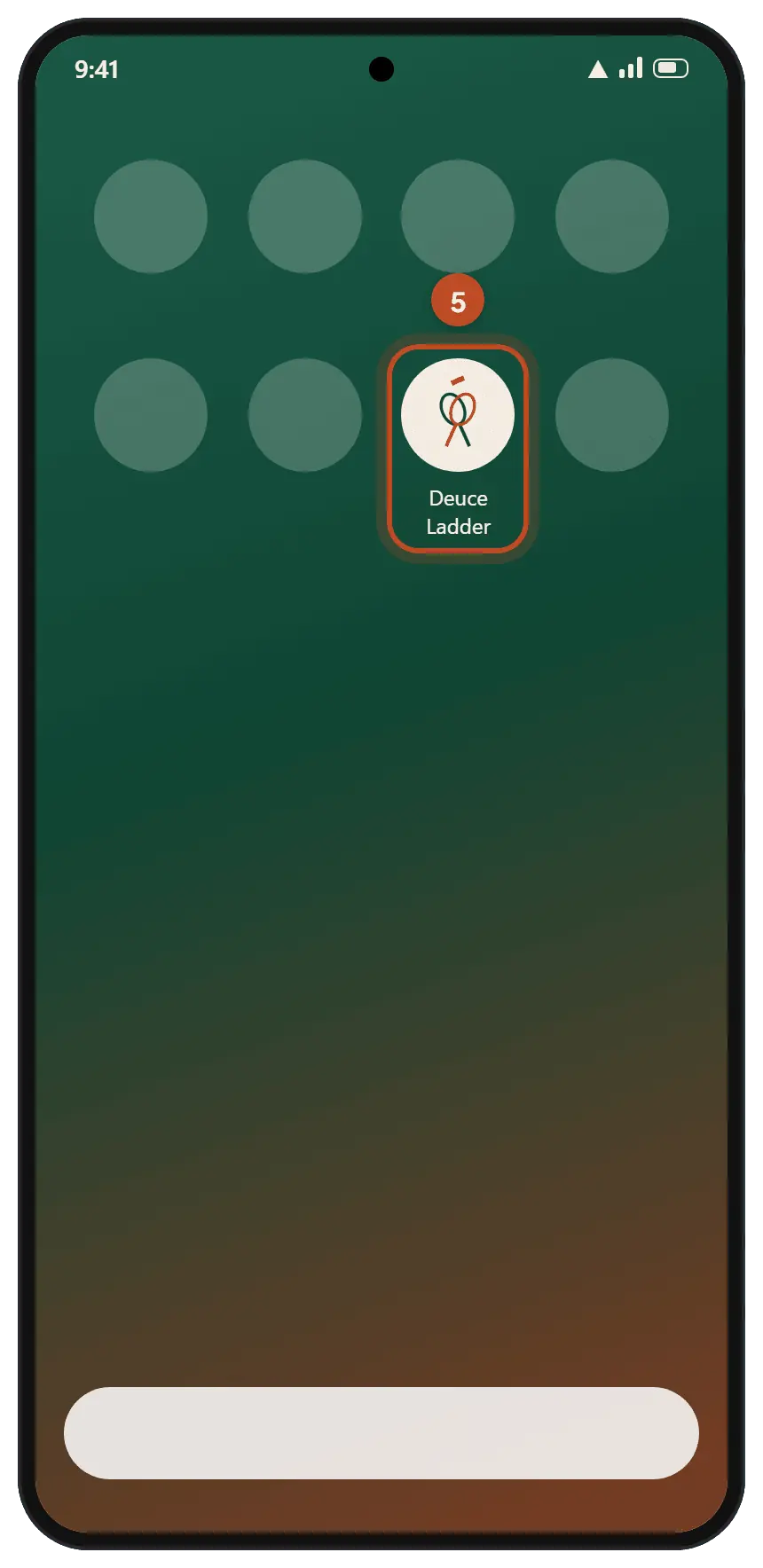
Step 5. Open Deuce from the new icon and sign in.
It opens full screen, with no Chrome bar.
Samsung Internet. Tap the menu (three lines) at the bottom right, then Add page to, then Home screen.
Firefox. Tap the three dots, then Install or Add to Home screen.
Next: switch on notifications.
Every phone
Switch on notifications
Notifications are set per device. Switching them on for your phone does nothing for your laptop, so repeat these steps on each one you use.
Step 1. Open Deuce from its icon and sign in.
On iPhone, notifications only work in the app opened from the Home Screen icon, never in a Safari or Chrome tab. On Android and on a computer, the browser works too.
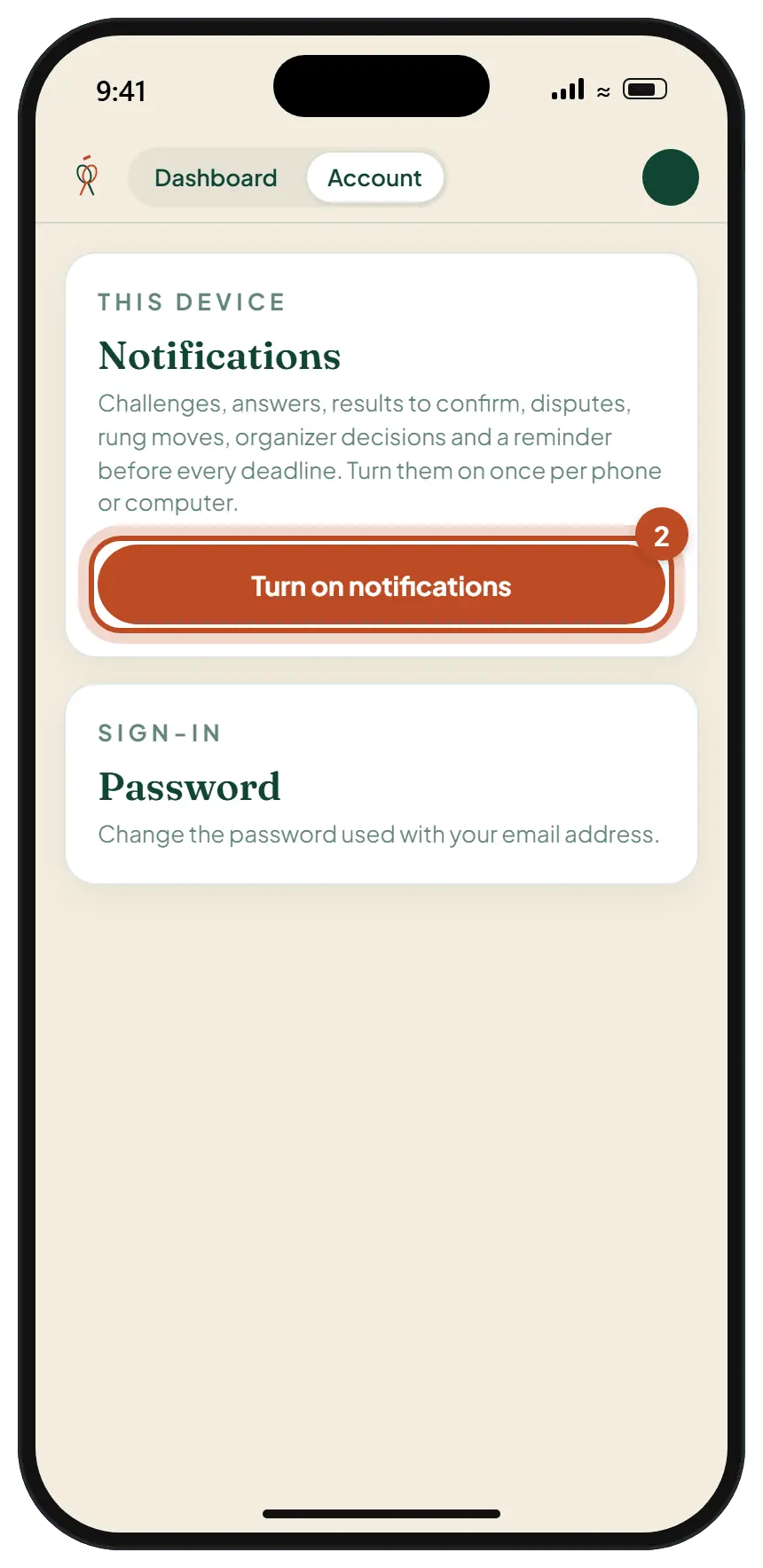
Step 2. Tap Turn on notifications.
The first time, a card with that button sits at the top of your dashboard. It is always on the Account page too, under Notifications.
iPhone
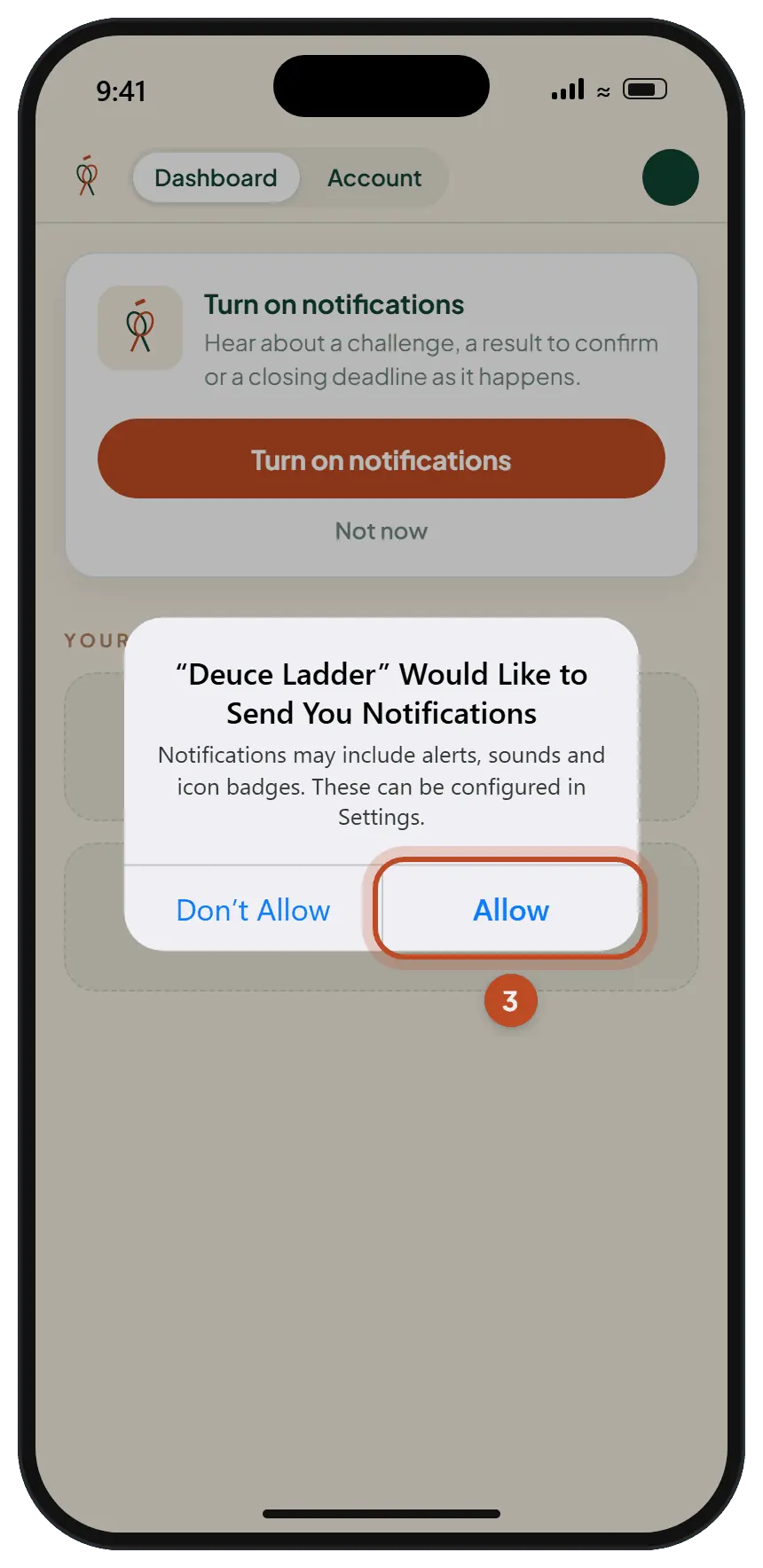
Step 3. Tap Allow.
Your phone asks once whether Deuce may send notifications. If you tap Don't Allow by mistake, it will not ask again: see the next section to fix it.
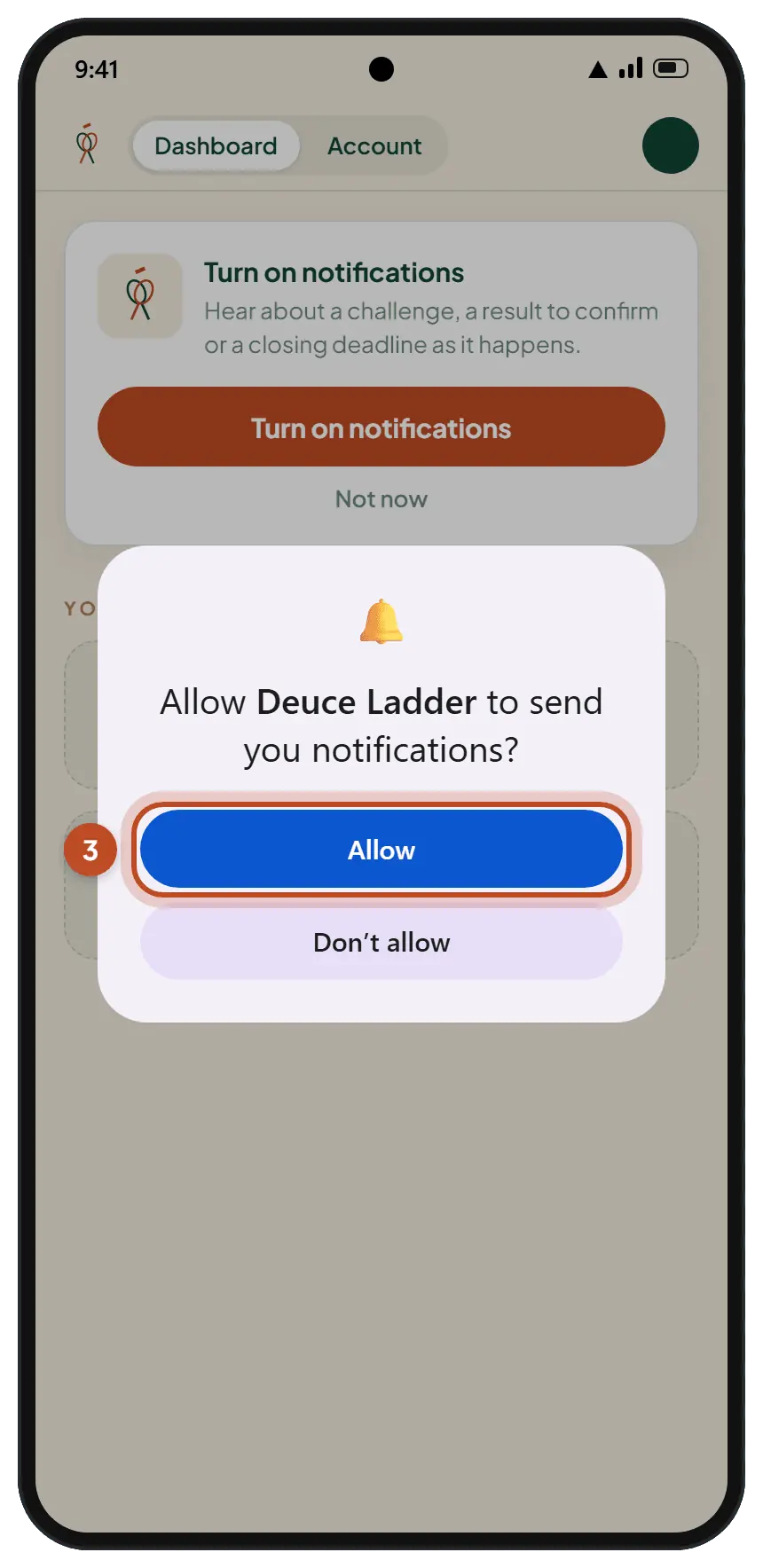
Android
The same question on Android. Tap Allow.
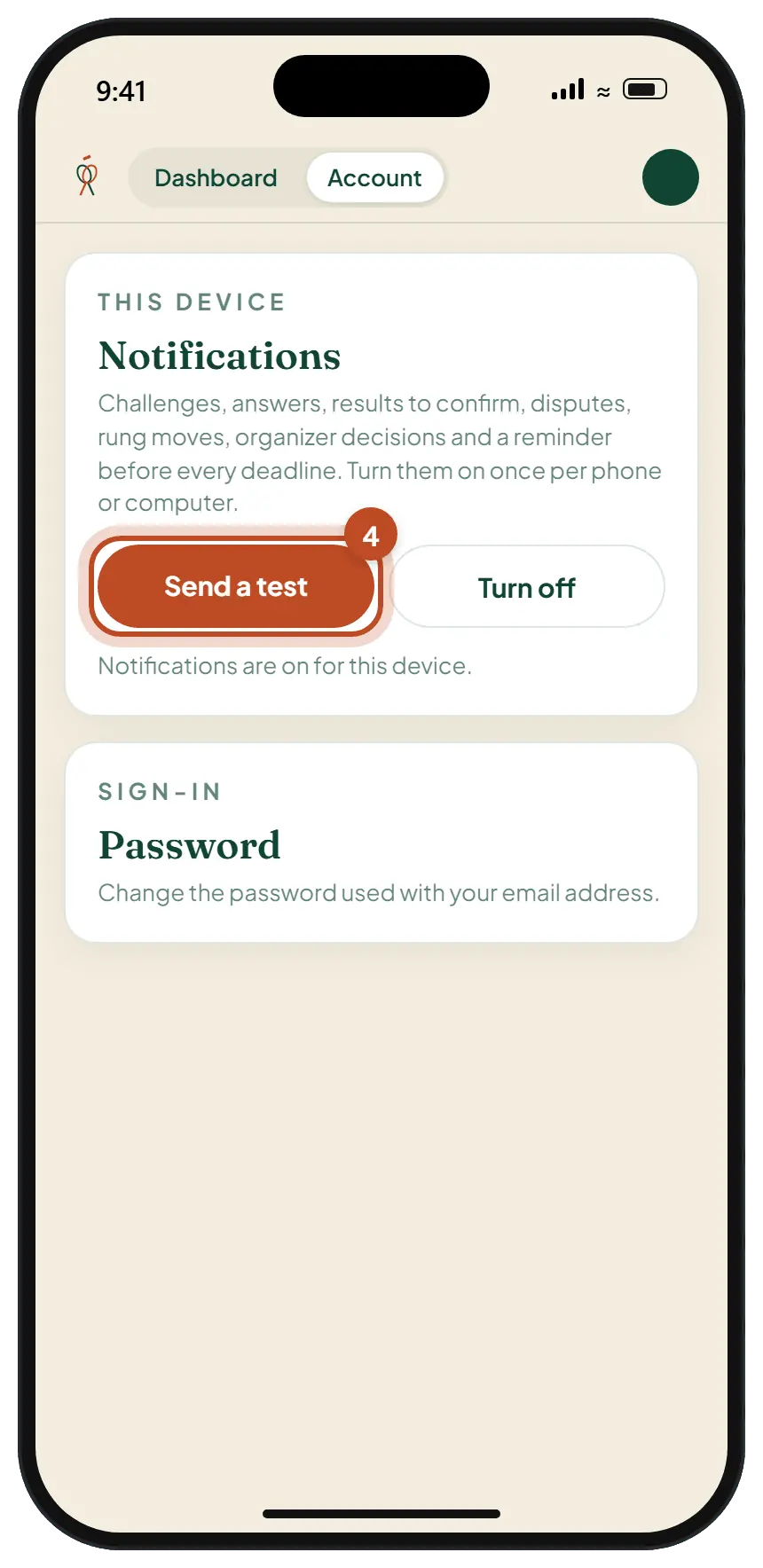
Step 4. Tap Send a test.
It is in the same Notifications panel on the Account page, which now says notifications are on for this device.
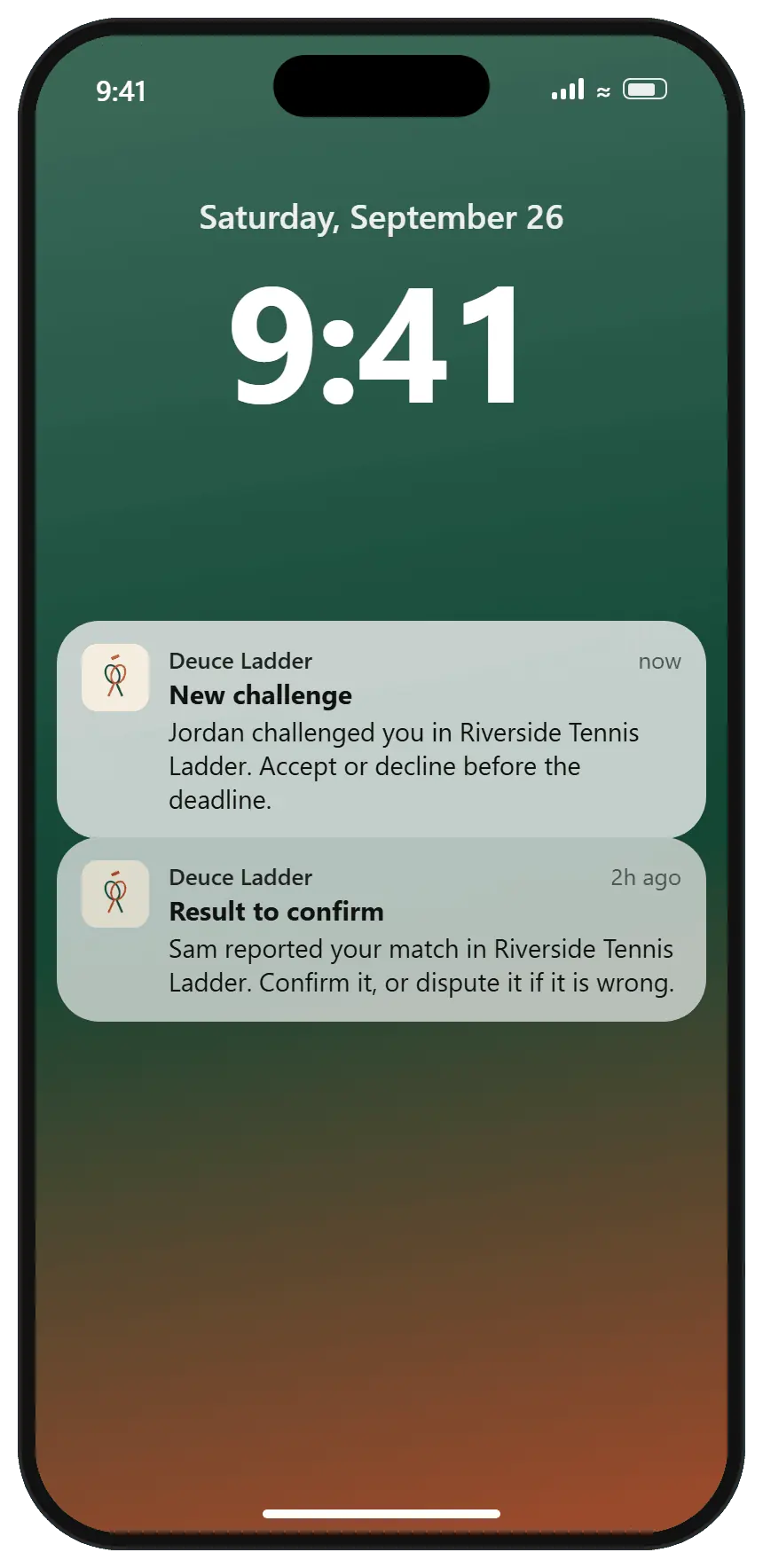
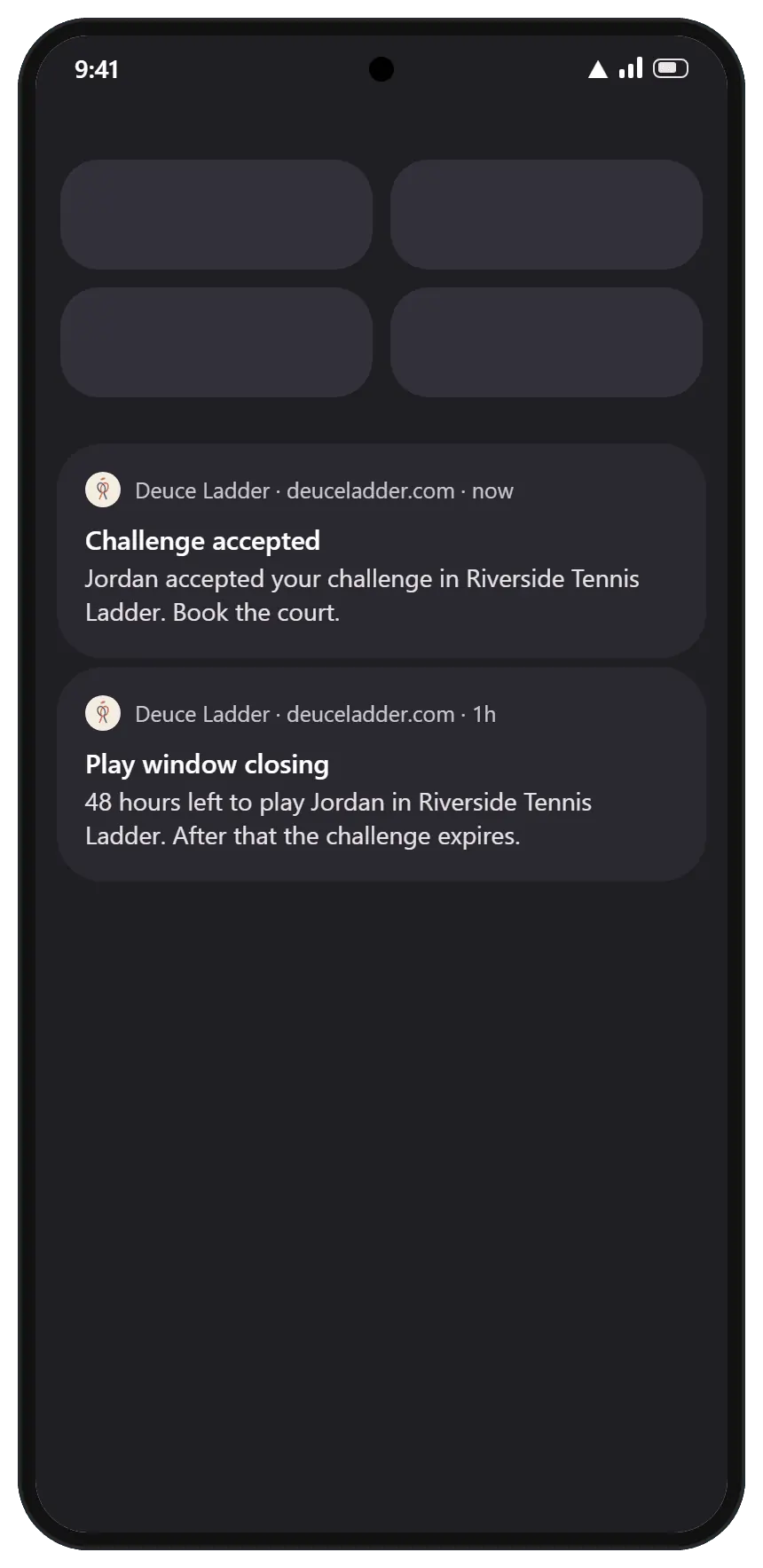
Step 5. Look for it on your lock screen.
The test lands within a few seconds. Challenges, results and deadlines arrive the same way from now on.
To stop them, tap Turn off in the same panel. That stops them on the device you are holding and nowhere else.
Settings
If notifications are blocked
If you tapped Don't Allow, the phone will not ask again. Switch them back on in its settings, then return to the Account page and tap Turn on notifications.
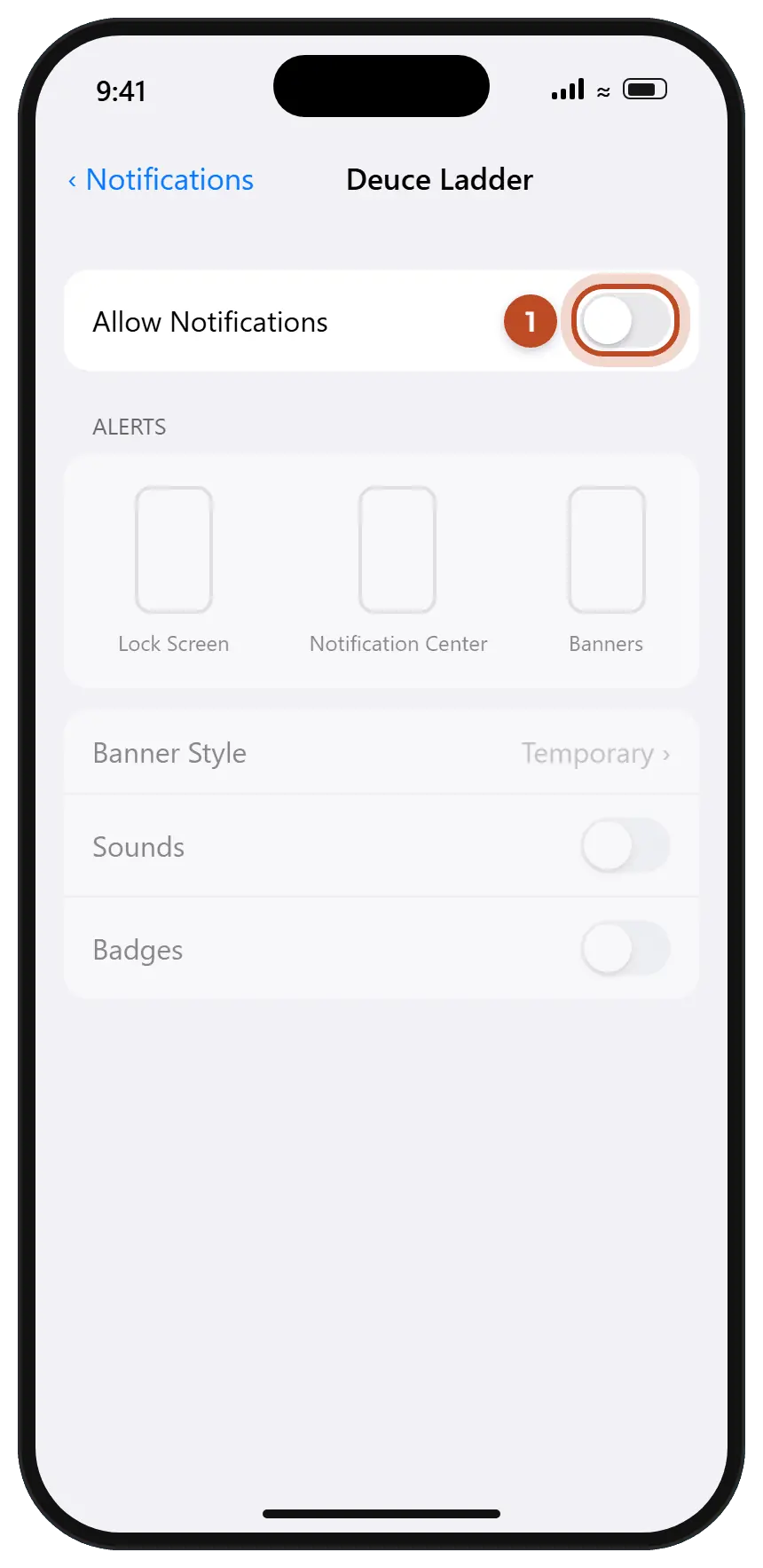
- iPhone. Open Settings, tap Notifications, scroll to Deuce Ladder, tap it, and turn on Allow Notifications.
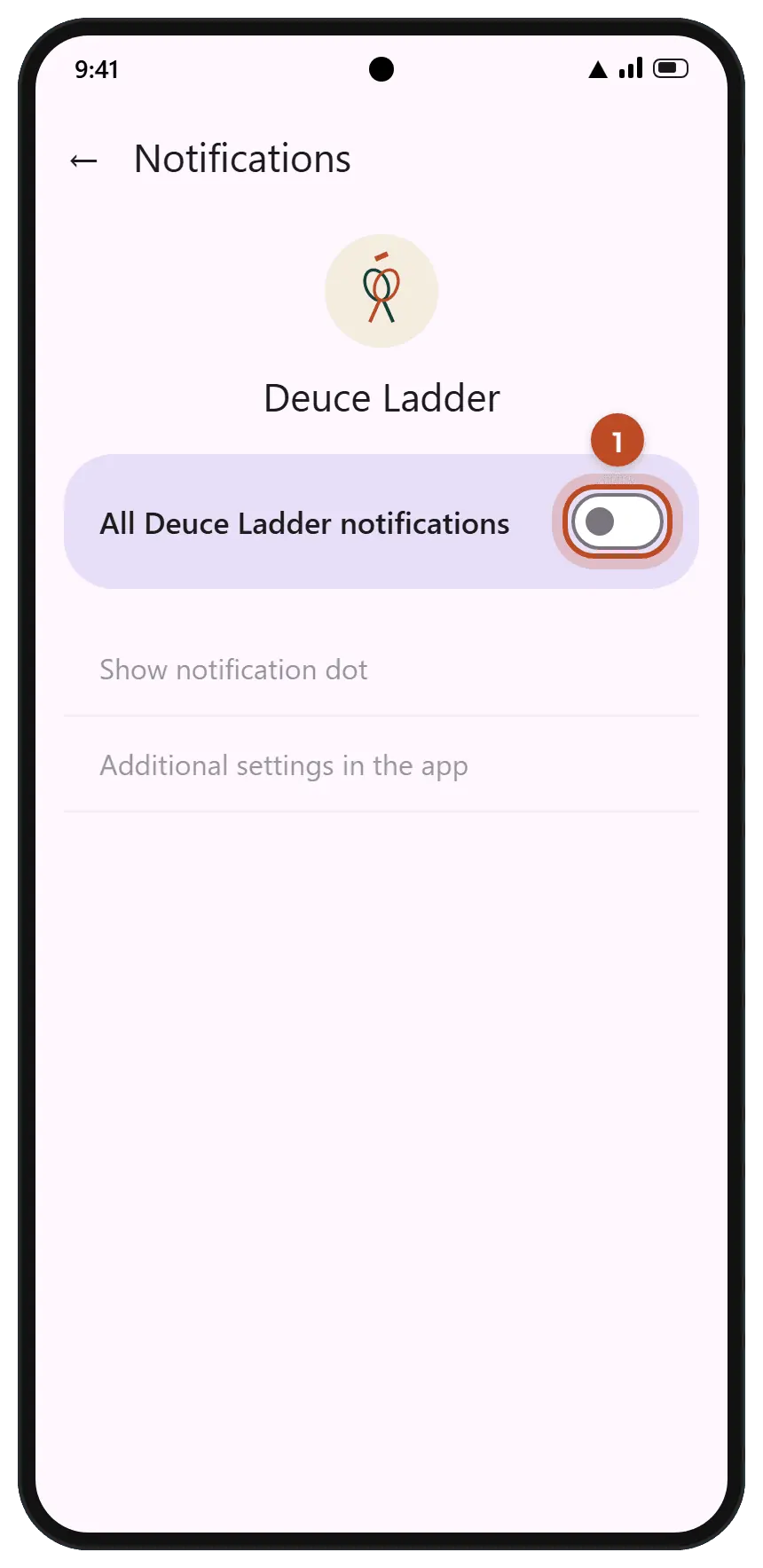
- Android. Press and hold the Deuce icon, tap App info, then Notifications, and turn on All Deuce Ladder notifications.
- Chrome on Android, in a tab. Tap the three dots, then Settings, Site settings and Notifications, and allow deuceladder.com.
- Chrome on a computer. Click the icon at the left end of the address bar, open Site settings, and set Notifications to Allow.
iPhone
Settings, Notifications, Deuce Ladder: turn on Allow Notifications.
Android
App info, Notifications: turn on All Deuce Ladder notifications.
Notifications
What Deuce notifies you about
- Challenges. Someone challenges you, accepts your challenge, declines it or cancels it.
- Results. Your opponent reports a score for you to confirm, confirms yours, or disputes it, and the organizer's decision on a dispute.
- Deadlines. A reminder 12 hours before a challenge answer is due, 48 hours before a play window closes, and 12 hours before a reported result confirms itself.
- Your rung. When the standings move you up or down.
- Your organizer. A message, an absence decision, a join request approved or declined, a new season, or a ladder closing.
- If you run a ladder. Join requests, new players, players leaving, disputes that need your decision and absence requests.
You never get a notification about something you did yourself. Email keeps working as before, so nothing depends on your phone alone.
Laptop and desktop
On a computer
You do not need to install anything on a computer. Sign in, open the Account page, and tap Turn on notifications under Notifications. Chrome, Edge, Firefox and Safari all show them.
If you would like Deuce in its own window, Chrome and Edge show an install icon at the right end of the address bar. Click it, then Install.
Answers
Questions
Is this a real app?
It is the Deuce website, installed. It opens from its own icon, full screen, and sends notifications like an app. It updates itself: there is nothing to download from a store, ever.
Do I still get emails?
Yes. Challenges, invitations and join decisions still arrive by email. Notifications are the faster channel, not a replacement.
Does it work in China?
On iPhone, yes: notifications travel through Apple, which works in mainland China. On Android, Chrome's notifications travel through Google, which is blocked there, so the app installs and runs but notifications may not arrive. Email still does.
Can I install it from inside WeChat?
No. WeChat opens links in its own browser, which cannot install apps or show notifications. Tap the three dots at the top right in WeChat, choose the option to open the page in your browser, and follow the steps from there.
How do I remove the app?
The same way as any app. On iPhone, press and hold the icon and tap Remove App. On Android, press and hold it and tap Uninstall or Remove. Your account and your ladders are not affected.
Something not working? Tell us what you see and which phone and browser you have.